

Summarize this article with
You can finally schedule messages on WhatsApp without a third-party app. The feature is rolling out in phases to Android and iPhone users, including in India, and it lets you pick a date and time for a text, photo, video or link to go out on its own. Here’s how it works, what it supports and where it still falls short.
Table of Contents
It’s one of those features people have asked for since forever. Birthday wishes at midnight, a reminder to the family group before a trip, a work nudge you don’t want to send at 11 pm. Now WhatsApp handles the timing for you.
How to Schedule Messages on WhatsApp Right Now
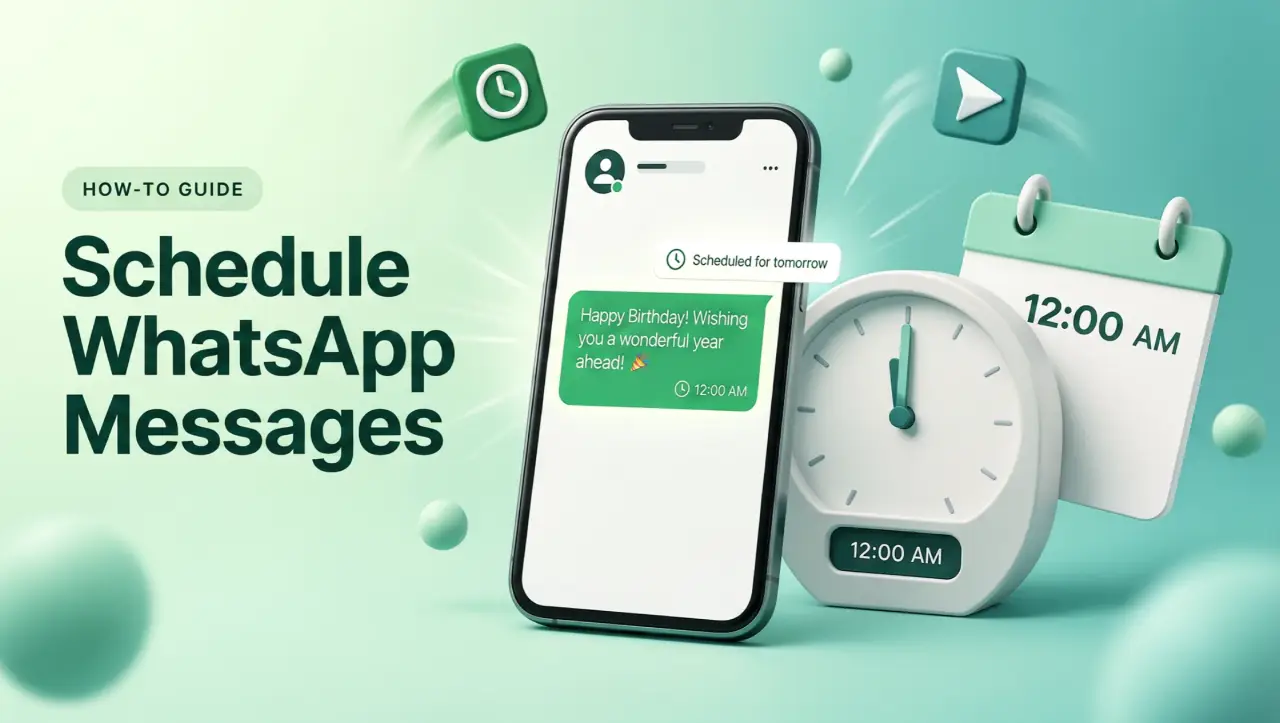
To schedule messages on WhatsApp, open a chat, type your message or attach a photo or video, then press and hold the send button. If your account has the feature, a schedule option appears. Pick a date and time, then tap the green button that shows the delivery time to confirm. That’s it.
Here’s the full flow, step by step:
- Open the individual or group chat you want to message.
- Type your text, or add a photo or video from the media picker.
- Press and hold the send button (the paper-plane icon).
- Tap Schedule message in the menu that pops up.
- Choose the date and time from the bottom sheet.
- Tap the green button showing the delivery time to lock it in.
After you schedule it, WhatsApp shows a small confirmation in the chat. Only you can see it, so the other person has no idea a message is on the way.
Who Can Use WhatsApp Scheduled Messages in India?
WhatsApp is releasing scheduled messages gradually, so not every account has it yet. According to a Digit report on 25 November 2026, the option is reaching users on both iOS and Android in India, with more iPhone users seeing it so far than Android users. WhatsApp’s own X account also hinted at the rollout by replying “it’s working” to a post about scheduling.
The feature first showed up for testers in October. WABetaInfo, which tracks WhatsApp beta builds spotted it in WhatsApp beta for Android 2.26.40.7 and then in the iOS TestFlight beta 26.42.10.19 on 22 October 2026. WhatsApp hasn’t given a date for when every user will get it.
If you don’t see the option, I’d start by updating WhatsApp from the Play Store or App Store. If it still isn’t there, your account just hasn’t been switched on yet. There’s no setting to turn it on yourself.
What You Can Schedule and the Time Limits
Scheduled messages cover the basics most people need, with a few clear limits. This table sums them up:
| Detail | What WhatsApp supports |
|---|---|
| Message types | Text, photos, videos and links |
| Items per schedule | One at a time (each photo or video needs its own scheduled message) |
| Earliest send time | 10 minutes from now |
| Latest send time | Two weeks ahead |
| Chats | Individual chats and group chats |
| Phone offline? | Still sends, even if the app is closed or your phone is offline |
| Encryption | End-to-end encrypted, like normal messages |
The 10-minute minimum is deliberate. It gives you a short window to cancel or fix a message before it goes out. The two-week maximum is long enough for most birthdays, anniversaries and event reminders.
The one-item rule is the most annoying limit. If you want to send five holiday photos at a set time, you’ll need to schedule five separate messages.
How to Edit or Delete a Scheduled WhatsApp Message
Every scheduled message sits in a dedicated section inside the chat info screen. For groups, you’ll find it in group info. From there you can see what’s queued and delete anything before it’s sent.
Deleting a scheduled message is silent. The recipient never gets a notification, because nothing was ever delivered to them. There’s no direct edit option mentioned in the reports so far, so the practical way to change a message is to delete it and schedule a new one.
How Scheduled Messages Work in WhatsApp Groups
Group scheduling has one rule worth knowing. A scheduled message only goes to the people who were in the group when you scheduled it. Anyone who joins afterwards won’t receive it.
That’s a sensible privacy call, but it can catch you out. If you schedule a welcome note for new members, they won’t actually see it. For big community groups, I’d schedule reminders close to the send time so the member list is current.
View-Once Text Messages Are Arriving Too
Alongside scheduling, some Android users are getting view-once text messages. You type a message, long-press send and pick View once. The recipient can’t forward it, copy it or screenshot it, because it opens in a separate window rather than in the chat.
It’s handy for sharing things like a Wi-Fi password or a one-time code you don’t want sitting in a chat forever. Like scheduling, it’s only reaching select users for now.
Smart Ways to Use Scheduled Messages
A few everyday uses where this feature actually saves you effort:
- Midnight wishes: schedule birthday or festival greetings in the evening and go to sleep.
- Work boundaries: write a message late at night but schedule it for 9 am so you don’t ping colleagues after hours.
- Trip and event reminders: queue a note to a family or friends group a day before the plan.
- Different time zones: message relatives abroad at a time that suits them, not you.
- Small business follow-ups: remind a customer about an order or appointment without setting an alarm for yourself.
Before this, people relied on auto-scheduler apps that asked for accessibility permissions or WhatsApp Business tools. Having it built in, with end-to-end encryption, is a cleaner and safer option. If privacy is a big deal for you, it’s also worth reading our guide to messaging apps that secure your chats.
Is WhatsApp Catching Up With Other Apps?
Partly, yes. Telegram has offered scheduled messages for years, and plenty of people moved for features like this. If you’re still weighing your options, our roundup of WhatsApp alternatives compares the main rivals.
Meta is also busy adding AI tools across its apps, from AI chats to assistants like the one we covered in our look at Meta’s Muse personal AI assistant. Scheduling is a far simpler upgrade, but it’s probably the one more people will use every day. For more app updates like this, head to our Apps section.
Frequently Asked Questions
Can I schedule WhatsApp messages without a third-party app?
Yes. The new built-in option lets you schedule texts, photos, videos and links directly in WhatsApp. It’s rolling out in phases, so update the app and check by long-pressing the send button.
Will the message send if my phone is off or offline?
Yes. Reports from the beta say scheduled messages are delivered even if your device is offline or the app is closed.
Does the other person know I scheduled a message?
No. The scheduling confirmation in the chat is visible only to you, and deleting a scheduled message doesn’t notify the recipient.
Final Thoughts
Scheduled messages fix a small but real problem: getting the timing right without staying awake or setting alarms. You get a 10-minute to two-week window, support for media and links, and quiet deletion if you change your mind. The catch is the slow rollout and the one-item limit.
If the option isn’t on your phone yet, keep WhatsApp updated and check again over the coming weeks. Have you got it already? Tell us how you’re using it.