

Summarize this article with
A formula parse error in Google Sheets means Sheets can’t read the formula you typed, so it shows #ERROR! instead of a result. The good news? It’s almost always a typing problem, not a broken spreadsheet. A missing quote, an extra bracket or the wrong separator is usually all it takes.
Table of Contents
Below, I’ll walk through what the error actually means, the causes I’d check first, and how to fix each one with a quick before-and-after example.
What does formula parse error mean in Google Sheets?
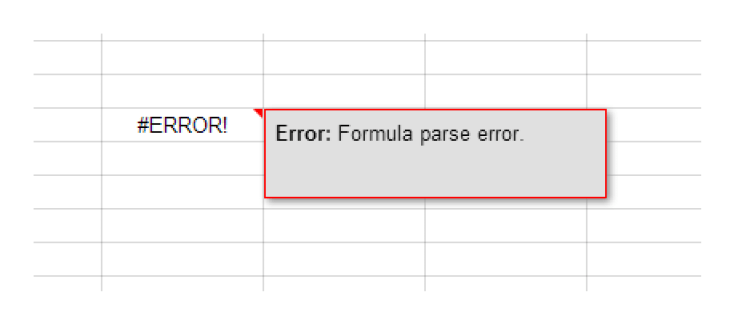
It means the formula’s syntax is broken. Before Sheets calculates anything, it “parses” the formula: it splits it into pieces such as function names, cell references, operators and text, and checks that they fit together. If a piece doesn’t make sense, it stops there and shows #ERROR!. Hover over the cell and you’ll see the tooltip “Formula parse error.”
That’s different from errors like #N/A or #DIV/0!. Those formulas are written correctly but produce a result Sheets can’t show. A parse error never gets that far, which is why the fix is nearly always in the formula text itself.
The most common causes (and how to fix each one)
In my experience, nine out of ten parse errors come from the short list below. Work through it in order and you’ll usually find the culprit within a minute.
1. Missing or extra parentheses
Every opening bracket needs a closing one. In a long nested IF it’s easy to drop one. =IF(A2>10,"High","Low" fails, while =IF(A2>10,"High","Low") works. Click inside the formula bar and Sheets colours each pair of brackets, so a pair that doesn’t match stands out.
2. Text without quotation marks
Text inside a formula has to sit inside straight double quotes. =IF(B2=Yes,1,0) breaks or gives the wrong result, but =IF(B2="Yes",1,0) works. Watch out for curly “smart” quotes too. If you copy a formula from a doc, an email or a website, the quotes often come along as curly ones, and Sheets won’t accept them. Retype them by hand.
3. Joining text and numbers without the & operator
You can’t just put text and a function side by side. ="Total "SUM(A1:A6) throws a parse error. Use the ampersand: ="Total "&SUM(A1:A6). If A1:A6 adds up to 21, the cell shows “Total 21”. The CONCATENATE or TEXTJOIN functions do the same job if you prefer them.
4. The wrong argument separator for your locale
This one catches a lot of people. Sheets uses commas between arguments in some locales, such as the United States, and semicolons in others, such as Germany or France. Paste a formula written for a different locale and it can fail straight away. You can check yours under File > Settings > General > Locale. Either switch the locale or swap the separators, for example =SUM(A1;A6) to =SUM(A1,A6).
5. Typing currency or percent symbols into the formula
Symbols like $ already mean something in Sheets. $A$1 is an absolute reference, not a dollar amount. Typing something like =100$*B2 confuses the parser. Enter plain numbers and use Format > Number to show currency or percentages instead. It’s cleaner, and the maths stays correct.
6. Missing operators or broken ranges
Formulas such as =A1 A2 (no operator), =A1: (unfinished range) or =SUM(A1:A6 with a stray character will all fail. Read the formula left to right and check that every value has an operator or comma between it and the next one.
7. Long formulas copied from another tool
Formulas from Excel, AI chatbots or old forum posts sometimes use functions or syntax Sheets doesn’t support, or carry hidden characters. If a pasted formula fails, I’d retype the first function by hand. Sheets’ autocomplete will then show you the exact arguments it expects. You can check any function’s syntax in Google’s official list of Sheets functions.
Formula parse error vs other Google Sheets errors
Not every error message is a parse error. This table helps you spot which one you’re dealing with, so you don’t hunt for a typo that isn’t there.
| Error | What it means | Typical fix |
|---|---|---|
#ERROR! (formula parse error) | Sheets can’t read the formula’s syntax | Fix brackets, quotes, separators or operators |
#NAME? | Unknown function name or unquoted text | Check spelling, e.g. SUMM should be SUM |
#N/A | A lookup found no match | Check the search key and range in VLOOKUP or XLOOKUP |
#REF! | A reference is invalid, circular, or an array has no room to expand | Restore the deleted cells, or clear the cells blocking the result |
#VALUE! | The wrong type of data was used, e.g. text in a sum | Convert text to numbers or fix the referenced cell |
#DIV/0! | The formula divides by zero or an empty cell | Wrap it in IFERROR or check the divisor |
#NUM! | The result is an impossible or too-large number | Check the inputs, e.g. the square root of a negative number |
A quick checklist to fix a formula parse error
When a formula won’t work and I can’t see why, this is the order I check things:
- Hover over the cell and read the tooltip, which confirms it’s a parse error.
- Count the opening and closing brackets.
- Make sure every bit of text sits in straight double quotes.
- Look for missing
&between text and values. - Check that the separators (comma or semicolon) match your locale.
- Remove typed
$or%symbols and use number formatting instead. - If the formula is long, rebuild it one function at a time until the error appears.
That last step sounds slow, but it’s often the fastest way to fix a large nested formula. Start with the innermost function, confirm it returns a value, then wrap the next function around it.
How to stop parse errors before they happen
A few habits make these errors far less common. Let autocomplete fill in function names and argument hints instead of typing everything from memory. Keep helper calculations in separate cells rather than in one giant formula. And when you share a sheet with people in other countries, tell them which locale it uses, because separator mix-ups are behind a lot of “it works for me but not for you” problems.
If you work across lots of tools, our software guides cover other everyday fixes too.
FAQs about formula parse errors
Why does my formula work in Excel but not in Google Sheets?
The two apps share most functions, but not all of them, and some arguments behave differently. Locale settings can also change the separator. Check that the function exists in Sheets and that the separators match.
Can IFERROR hide a formula parse error?
No. IFERROR only catches errors from a formula that Sheets can read and run. A parse error means the formula never runs, so you have to fix the syntax itself.
Is the formula parse error the same as #ERROR!?
Yes. #ERROR! is what shows in the cell, and “Formula parse error” is the explanation you see when you hover over it.
Also read: Fix: The Disk you Inserted was not Readable by this Computer